Find and Replace Text
A clean and powerful tool for quick text search and replacement. Paste your text, set one or multiple rules, highlight matches, use regex, whole-word and case-sensitive modes - and view the updated text right after applying your rules.
Find and Replace Text - a simple tool that saves time
This tool helps you quickly search for any word or phrase and replace it with a new one. Just paste your text, enter what you want to find, choose how it should be replaced, and the updated version appears in the preview window as soon as you apply your rules.
It works great for cleaning up drafts, editing long documents, fixing repeated mistakes, updating names or terms, or preparing text for publishing. Everything happens in your browser - no downloads or setup.

Flexible search options
You can adjust the search to fit your task:
- Case-sensitive mode - only match uppercase/lowercase exactly.
- Whole-word search - find only full words, not fragments.
- Regular expressions - perfect for advanced text processing.
The tool highlights all matches in the original text, so you always see exactly what will be replaced.
Multiple replacement rules
Unlike most online find-and-replace tools, this one allows you to keep several rules at hand. You can prepare different replacements, switch between them as you work and apply each rule when you need it.
Each rule counts its own matches, and switching between them is easy and intuitive.
Helpful extras
- Character and word counters
- Clear preview of the replacement result
- Match highlighting
- Quick actions: copy, paste, download, clear
- Clean, distraction-free interface
Quick actions
Small but useful shortcuts that speed up your workflow:
- Copy the result
- Paste from clipboard
- Download the edited text
- Clear the text fields
- Apply result - reuse the output as your new original text in one click
How to Find and Replace Text Online
You need to quickly swap specific words or phrases within a large block of text or source code. This tool provides a simple way to perform bulk find and replace operations. Use our fast and secure text editor to refactor your data right in your browser.
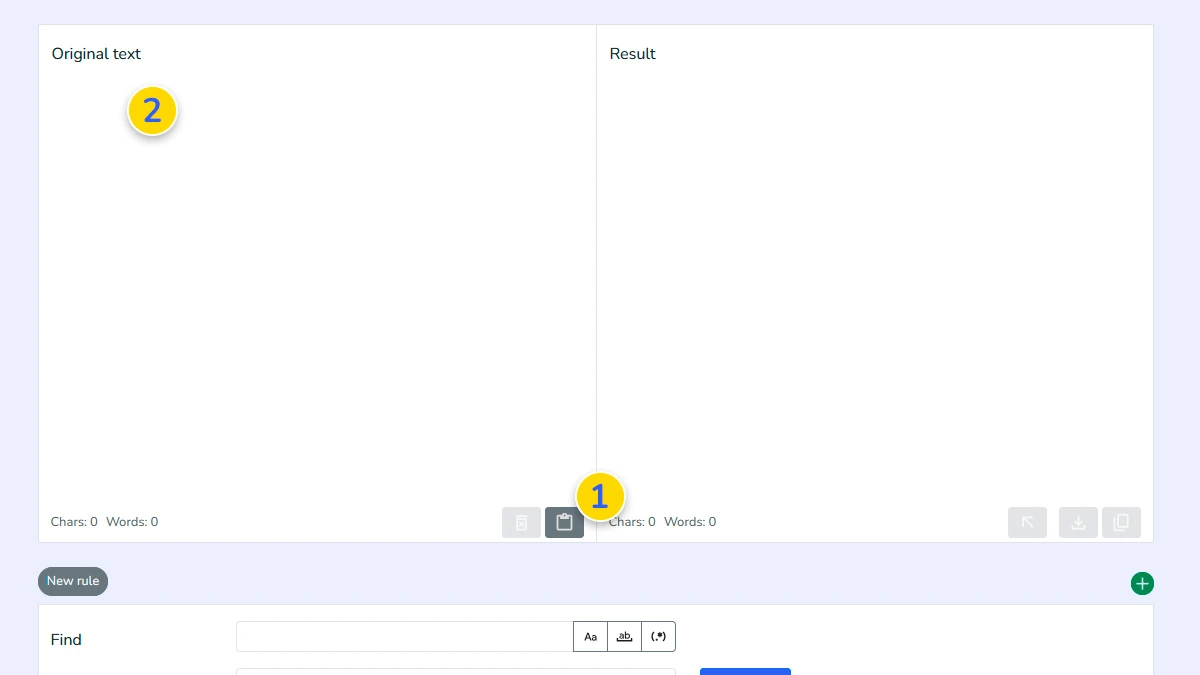
Paste or type your text1
Paste your source 1 text into the original text field or type it manually 2. The tool shows your content on the left and prepares the result area so you can see changes immediately after applying a rule.
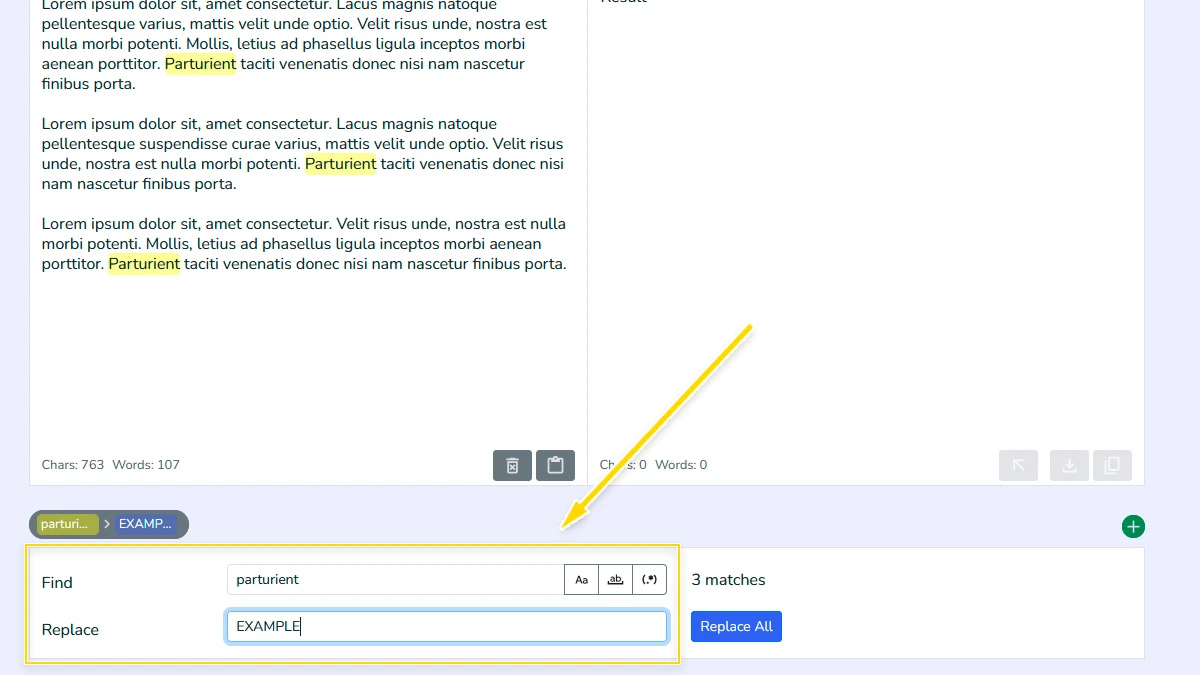
Enter find and replace values2
Type the word, phrase, or pattern you want to find, then enter the replacement text in the next field. This is the main rule the tool will use to update your text and build the final result.
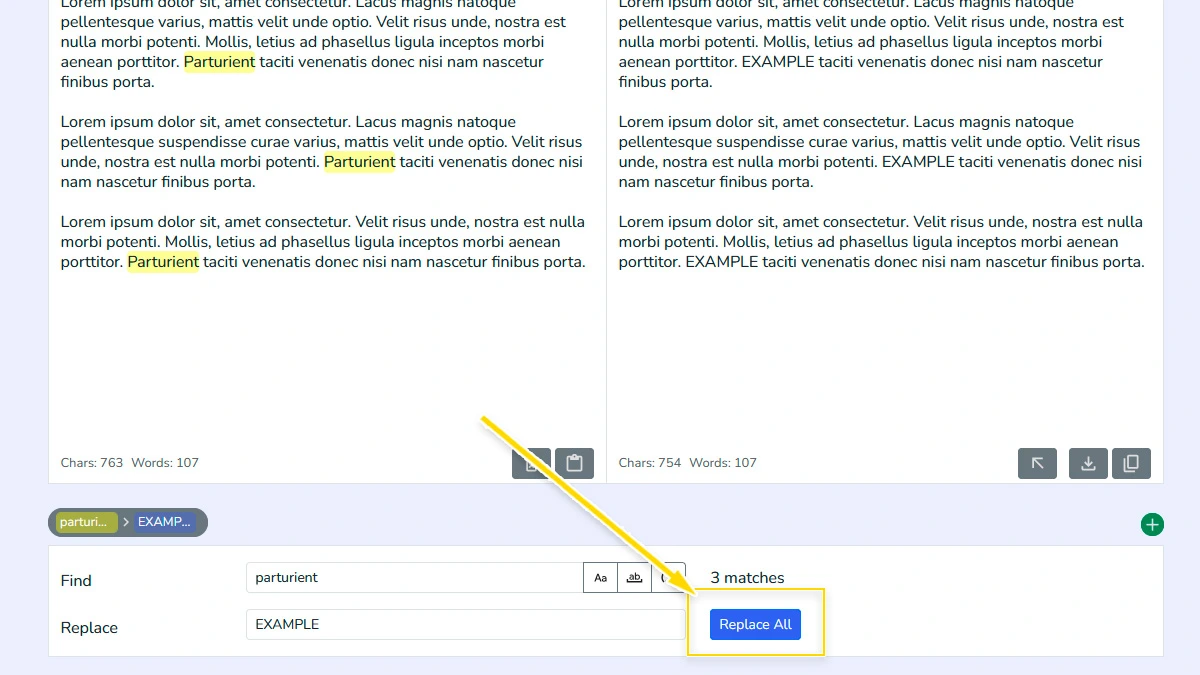
Click "Replace All"3
Trigger the automated replacement process by clicking the main button. The tool will scan your entire text and swap every single occurrence of the search term.
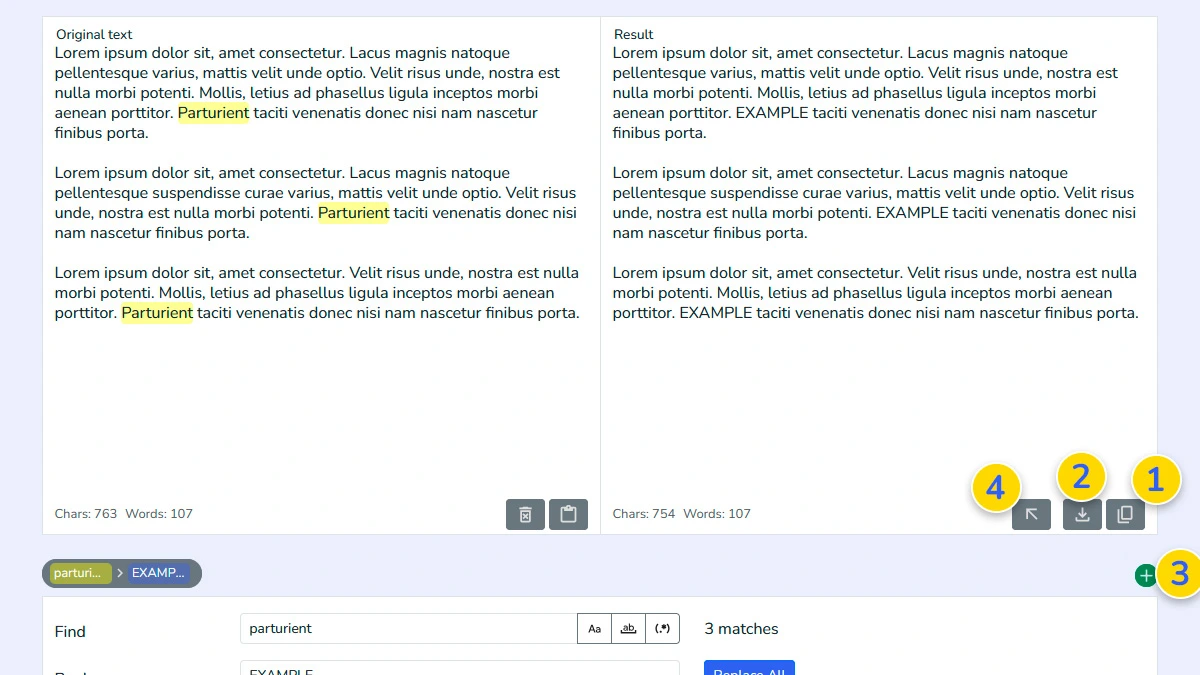
Copy, download or continue editing4
When the result looks right, copy it to the clipboard 1 or download it to your device 2. You can also keep editing, add more rules 3, or reuse the updated result as your new working text 4.
FAQ
Can I replace special characters or symbols?
You can find and replace punctuation, math symbols, emojis, and white spaces without any issues.
How much text can I process at once?
There is no hard limit, but for optimal browser performance, we recommend staying under 100,000 characters per single operation.
Is my text saved on your servers?
No. All find and replace operations happen locally in your browser. Your data never leaves your computer and is not stored.
Can I use this for Microsoft Word or Google Docs?
Yes. Simply copy the text from your document, paste it here, perform the replacement, and then paste the result back into your doc.
Does it support regular expressions?
Yes, you can enable regex mode for advanced search and replacement patterns.
Is case-sensitive search available?
Yes, you can enable case-sensitive matching when uppercase and lowercase matter.