Resize Image
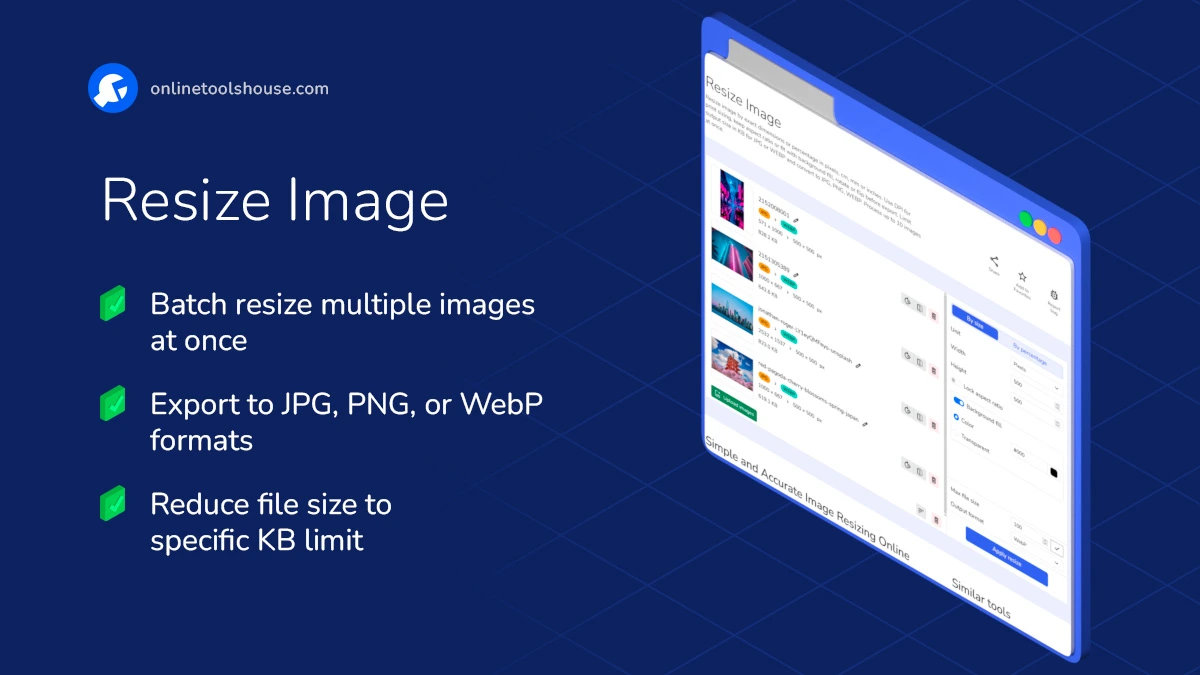
Resize image by exact dimensions or percentage in pixels, cm, mm or inches. Use DPI for print sizing, keep aspect ratio or fit with background fill, rotate or flip before export. Limit output size in KB for JPG or WEBP and convert to JPG, PNG, WEBP. Process up to 20 images at once.
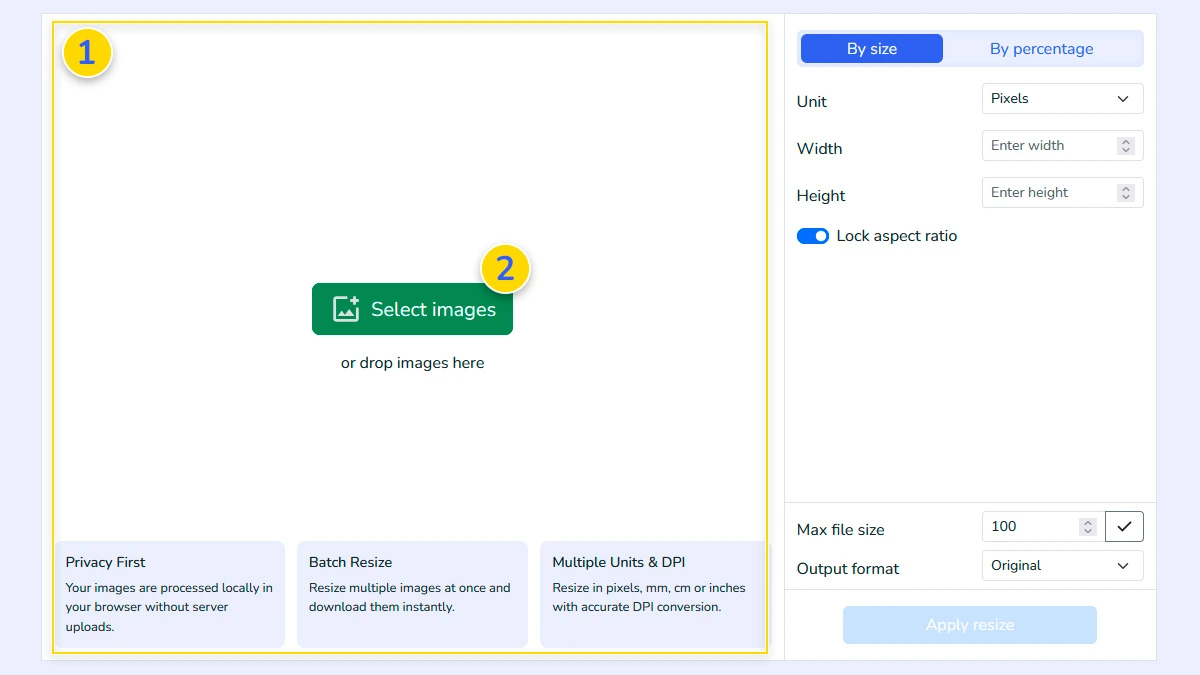
or drop images here
Privacy First
Your images are processed locally in your browser without server uploads.
Batch Resize
Resize multiple images at once and download them instantly.
Multiple Units & DPI
Resize in pixels, mm, cm or inches with accurate DPI conversion.
Simple and Accurate Image Resizing Online
Sometimes you just need a quick resize. Sometimes you need precise dimensions for printing, a strict file size limit, or a batch export for a website. This tool covers all of that in one place.
You can resize images by exact width and height or use percentage scaling. Enter 50 percent to cut an image in half. A 1000 × 1000 image becomes 500 × 500, no extra math.
Resize in pixels, centimeters, millimeters or inches
Choose the unit that matches your task. Pixels are perfect for web and UI work. Centimeters, millimeters and inches are useful when you prepare images for print, documents, or templates that rely on real world sizing.
When you pick a unit other than pixels, you can set DPI. That gives you predictable results for print workflows because the tool converts your target size into pixels using the DPI you choose.
Keep aspect ratio, stretch, or fit with background fill
If you enable Keep aspect ratio, the image stays proportional and will not look distorted.
If you disable it, the tool will stretch the image to match your exact width and height. This can be useful for placeholders or specific layouts.
Need a fixed canvas size without stretching the photo? Turn on background fill. The image will fit inside the target size and the remaining area can be filled with a color or left transparent. It is handy for thumbnails, banners, product images and social templates.
Batch resize up to 20 images
Upload up to 20 files and resize them in one go. It saves time when you prepare a folder of photos for a blog post, Shopify products, a portfolio, or social media.
Reduce image size in KB for JPG and WEBP
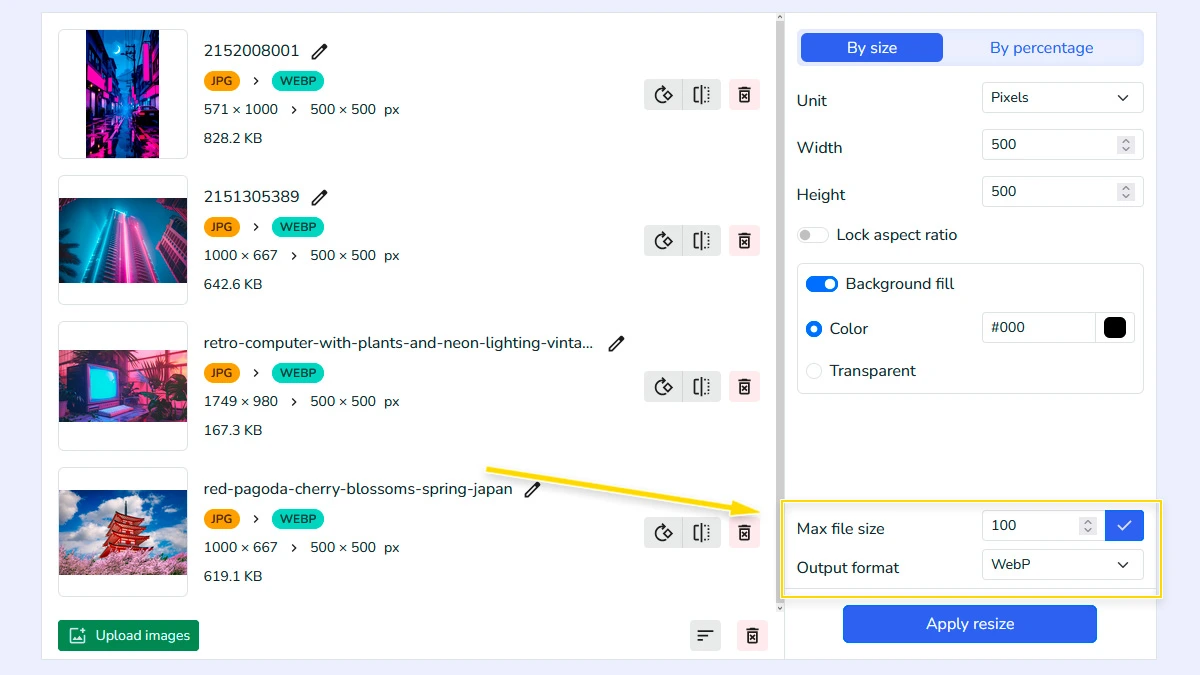
When file size matters, use the max size option. It helps you create lighter images for websites, forms, email attachments, or platforms with upload limits. For example, you can target results like 100 KB, 50 KB, or 20 KB when exporting to JPG or WEBP.
Export as JPG, PNG, WEBP or keep original
Choose the output format that fits your goal:
- Original format when you only need resizing
- JPG for smaller file sizes
- WEBP for modern web performance
- PNG when you need transparency or lossless quality
Quick edits before resizing
Before you export, you can rotate the image or flip it horizontally or vertically. These small fixes are often all you need, without opening a separate editor.
Common use cases
- Resize JPG or PNG for a website or blog
- Create consistent product images for Shopify
- Prepare images for Instagram without manual guessing
- Resize for documents using cm, mm or inches with DPI
- Reduce image file size to meet KB limits
- Batch resize multiple images in one upload
How to Resize Image Online Without Quality Loss
Need to adjust your photo dimensions or reduce file size for the web? This tool provides a way to process images in bulk directly in your browser. Start by uploading your files to get the perfect result in seconds.
Upload your images1
Upload images by dragging them into the upload area 1 or clicking the “Select images” button 2. The tool supports multiple files so you can prepare up to 20 images at once for resizing.
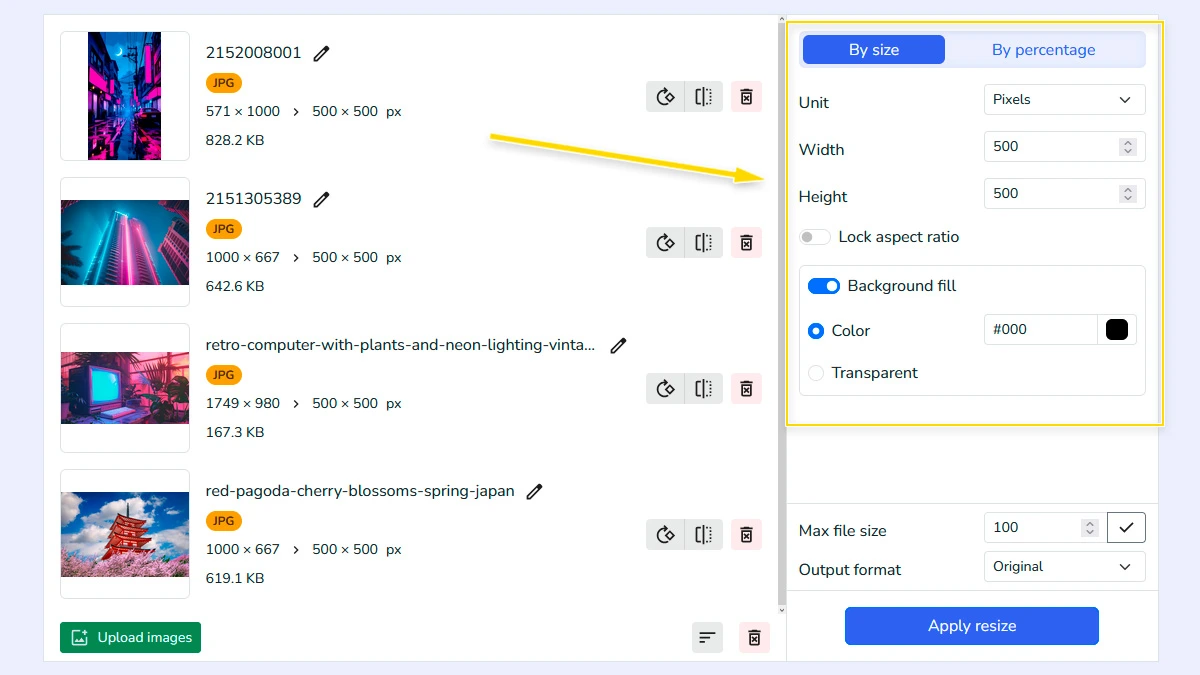
Choose resize mode and settings2
Select “By size” to set exact width and height or “By percentage” to scale proportionally. Adjust units, lock aspect ratio if needed, and define precise resize parameters.
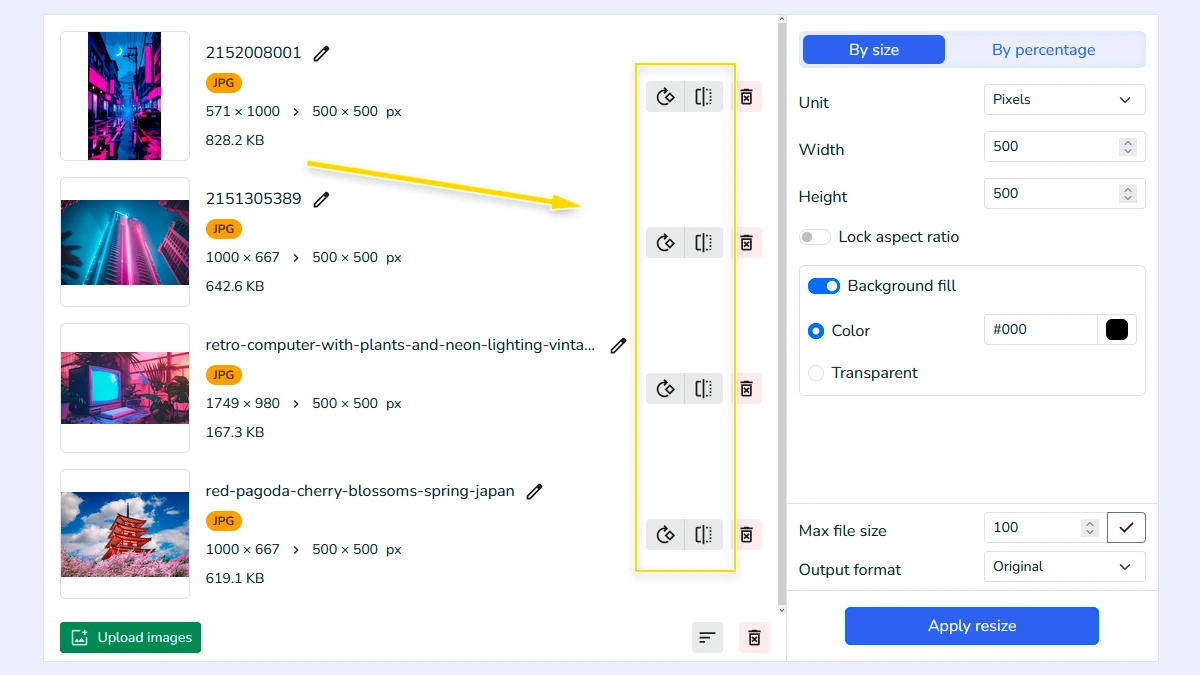
Edit image (Optional)3
Use the built-in editing options if you need to fix the orientation of your pictures. You can easily rotate them or flip them horizontally and vertically. These quick edits help fix images without using additional editing software.
Set output options4
Choose whether to keep the original file format or convert files to JPG, WebP, or PNG. You can also set a maximum target file size limit in KB to compress them.
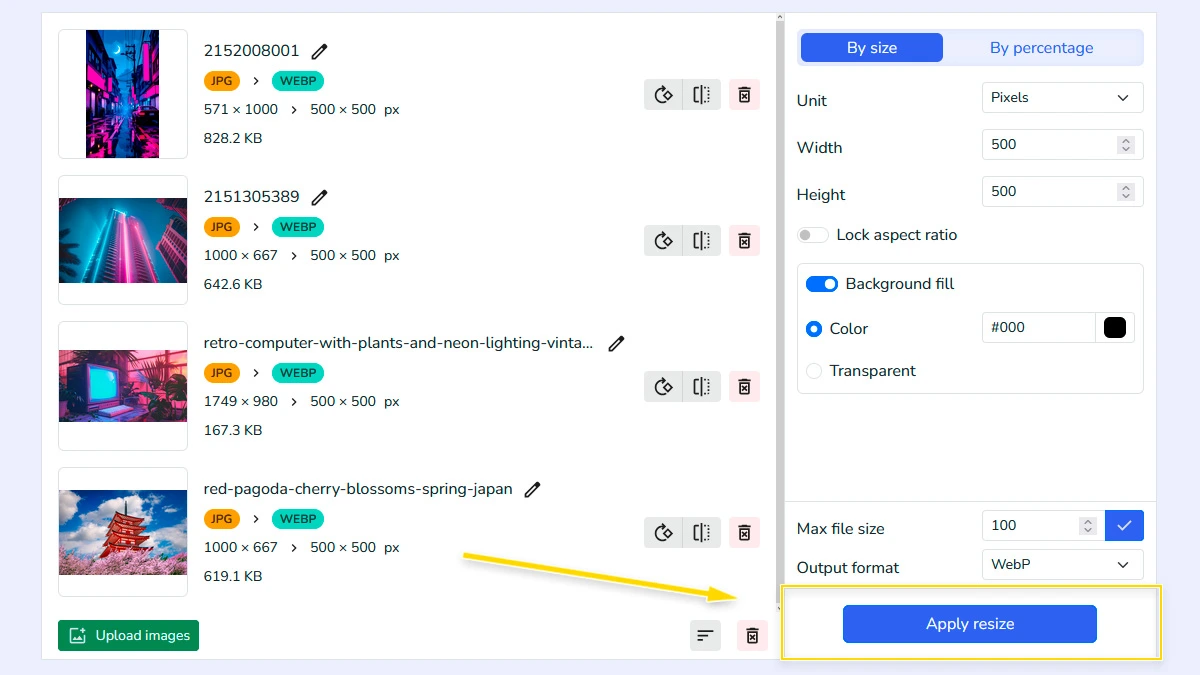
Apply resize and download5
Click the "Apply resize" button. In the pop-up modal, download your processed pictures individually or grab them all at once packed in a ZIP archive.
FAQ
Is it safe to upload my private photos here?
Yes, all processing happens locally in your browser. Your images are never uploaded to our servers.
What units can I use for resizing?
You can use pixels, centimeters, millimeters, or inches with DPI support.
Can I reduce file size in KB?
Yes, set a maximum file size and the tool will optimize the output.
Will my images lose quality?
Minimal quality loss depends on settings and format, especially with compression.
Do I need to install anything?
No, the tool works directly in your browser.
Is it free to use this photo resizer?
Yes, the tool is completely free and works directly in your browser without registration.
Which formats are supported?
You can upload JPG, PNG, and WebP images. You can also save them back to these formats or keep the original file types.
How many images can I resize at once?
You can upload and process up to 20 images at a time.